Home Network Security Australia: The Complete Guide 2026
Your home network is the perimeter now. Your banking, your work laptop, your kids’ devices, your smart TV that phones home to three analytics companies — all of it flows through one box the ISP posted to you, which you plugged in during 2021 and haven’t thought about since.
I evaluate security controls professionally, and the pattern I see in home networks is the same one I see in under-resourced businesses: money spent in the wrong places, and free controls left switched off. People buy antivirus subscriptions while their router runs firmware with known, exploited vulnerabilities. They pay for a VPN “for security” while their network password is the one printed on the sticker.
This guide fixes the ordering. It’s structured in three tiers: what everyone should do (free), what’s genuinely worth paying for, and the enthusiast tier for those who want to go further. At the end, I’ll also tell you what not to buy — because in home security, the industry sells a lot of things that don’t move the needle.
Everything here assumes an Australian context: NBN connections, ISP-supplied routers, CGNAT, and the local retail market.
Tier 1: What everyone should do (costs nothing)
These five steps eliminate the large majority of realistic risk to a home network. None of them cost money. If you do nothing else from this guide, do these.
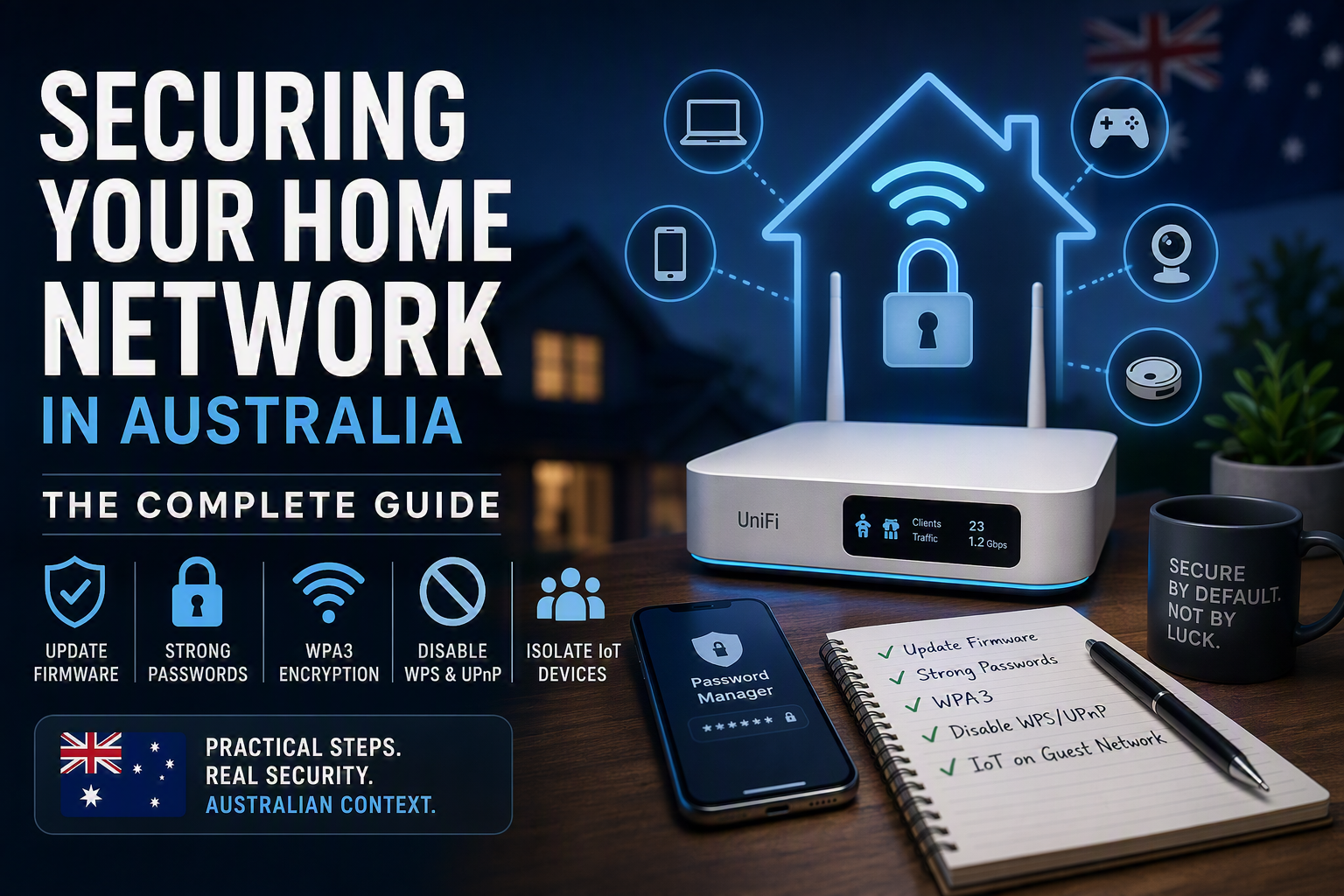
- Update your router’s firmware — and check it’s still supported. This is the single highest-value action on this page. Routers are the most attacked consumer devices on the internet, and the attacks overwhelmingly exploit known, already-patched vulnerabilities in devices nobody updated. Log in to your router’s admin page (the address and default login are usually on a sticker underneath), find the firmware section, and update. While you’re there, check when the last firmware release was. If your router hasn’t received an update in two or more years, the manufacturer has likely abandoned it — that’s your signal to replace it, and Tier 2 covers what with.
- Change the default admin password. Not the Wi-Fi password — the administrator password for the router’s settings page. Default credentials for every consumer router model are publicly documented, and automated scanners try them constantly. Make it long, make it unique, and store it in a password manager (more on that below).
- Use WPA3 if available, WPA2 as a minimum, with a strong passphrase. Check your router’s wireless security settings. If it offers WPA3 or “WPA2/WPA3 transitional,” use it. If your equipment only supports WEP or WPA (no number), it belongs in e-waste — those protocols have been practically broken for over a decade. Your Wi-Fi passphrase should be long; a four-word phrase beats a short jumble of symbols.
- Disable WPS and think hard about UPnP. WPS (the push-button pairing feature) has a long history of design flaws and brute-force weaknesses — turn it off; typing a passphrase once per device is not a hardship. UPnP is more nuanced: it lets devices on your network automatically open ports to the internet, which is convenient for gaming and awful for security, because it means any compromised device inside your network can punch holes in your firewall. If you don’t knowingly need it, disable it. If your console complains about “NAT type,” re-enable it consciously — at least then it’s a decision, not a default.
- Put your smart devices on the guest network. Most routers can run a second, isolated Wi-Fi network intended for guests. Its real value is as a cheap form of network segmentation: put the smart TV, the robot vacuum, the cheap Wi-Fi cameras, and every other device you don’t fully trust on the guest network, and keep your laptops and phones on the main one. When (not if) one of those IoT devices ships with a vulnerability, it can’t see the devices that matter. This is the same principle enterprises spend six figures implementing — your router does a rough version of it for free.
Tier 2: What’s genuinely worth paying for
Once the free controls are in place, there are exactly three categories where spending money buys real security. Note that two of them aren’t network hardware at all.
A router you own, from a manufacturer that patches. If your ISP-supplied router is old, unsupported, or a locked-down black box, replacing it is the best hardware money you can spend. What you’re actually buying is a firmware update commitment — the hardware specs matter far less than whether the vendor is still shipping security patches in three years.
My pick for most people who want to do this properly is the Ubiquiti UniFi Express 7 — a compact gateway with integrated Wi-Fi 7, currently around AUD $399–420 from Australian retailers like PC Case Gear and Scorptec. Ubiquiti sits in a sweet spot: prosumer-grade software with a genuine patching track record, proper VLAN support if you outgrow the guest-network trick, and it’s expandable with access points if your house has Wi-Fi dead zones. It’s the platform I’d point a technically-comfortable household toward. (Do note UniFi is an ecosystem — it rewards buying in, which is either a feature or a trap depending on your temperament.)
If ~$400 is more than the problem justifies for you, that’s a legitimate call — a current-generation Wi-Fi 6/6E router from any mainstream vendor with an active firmware pipeline, in the $150–300 bracket, is a huge upgrade over an abandoned ISP box. The brand matters less than the update history. Check the vendor’s support page for your candidate model before buying: if the firmware changelog is a graveyard, walk away.
One Australian wrinkle: if you’re on NBN, your “router” is usually separate from the NBN connection device (NTD/modem), which makes replacement straightforward — the new router plugs into the same port. If you’re on FTTN/FTTC with a VDSL modem-router combo, you’ll need either a router with a built-in VDSL modem or to run your ISP box in bridge mode. Your ISP’s support pages will say which; it’s a ten-minute job either way.
A password manager. Not network hardware, but it does more for your household’s actual security than any router. The most likely way your home gets “hacked” isn’t through your Wi-Fi — it’s through a reused password leaking from some breached website and being replayed against your email. A password manager kills that entire attack class. Bitwarden’s free tier is genuinely sufficient for most people; I’ve written a full breakdown in my guide to the best password managers for Australians.
A VPN — but only for the problem it actually solves. A commercial VPN encrypts your traffic to the VPN provider’s server. That’s valuable on networks you don’t control (airport Wi-Fi, hotels) and for privacy from your ISP — relevant in Australia, where the metadata retention regime requires ISPs to keep records of your connection metadata for two years. What a VPN does not do is secure your home network. It won’t patch your router, protect your IoT devices, or stop phishing. If the privacy use case applies to you, my best VPN for Australia guide covers the options honestly, including one that doesn’t pay me a cent. If it doesn’t apply to you, skip the subscription with a clear conscience.
Tier 3: The enthusiast tier
This is where “securing your network” turns into a hobby. Nothing here is necessary — but if you’ve done Tiers 1 and 2 and enjoyed it, this is where the real learning is.
A dedicated firewall appliance. Devices like the Firewalla range (sold locally through Australian resellers) sit between your modem and network and give you enterprise-style visibility: which devices are talking to which countries, intrusion detection, per-device rules, network segmentation without the networking degree. It’s the closest thing to a “just works” version of what I run in my own lab. The honest caveat: for most households, the marginal security gain over a well-configured Tier 2 setup is modest. You’re buying visibility and control — which is genuinely fun — more than closing a gap that was likely to hurt you.
Self-hosting your own services. Running your own VPN server for remote access to your home network is a different tool for a different job than a commercial VPN — I’ve covered the distinction, and the CGNAT and dynamic-IP realities that complicate it on Australian connections, in my self-hosted WireGuard guide. Similarly, self-hosting your own password manager backend is possible and instructive, though as I argued in the Vaultwarden guide, most people are better served just paying for the hosted product.
Network-wide ad and tracker blocking. A small device running DNS filtering can strip ads and trackers for every device on your network, including the smart TV you can’t install a browser extension on. It’s one of the most satisfying home lab projects there is, and it’s the next article coming in the home lab series.
What not to buy
The home security market monetises anxiety, so it’s worth being explicit about where I’d keep my wallet closed.
Antivirus subscriptions for your whole device fleet. Windows Defender — free, built in — is a genuinely competent product, and the marginal protection of paid consumer AV over it is small. The endpoint security that matters most in 2026 is: automatic OS updates turned on, a password manager, and MFA on your important accounts. If a paid suite is being sold to you primarily on its bundled “identity protection” and “secure VPN” extras, note that both are usually weaker versions of standalone products.
“Security-enhanced” router subscriptions. Several router vendors now sell their firmware’s security features — threat blocking, IoT protection — as a monthly subscription on top of hardware you already bought. The protection is real but shallow, mostly DNS-level blocklists you can replicate for free (see Tier 3). I’d rather see that money go to a better router upfront.
Whatever your ISP is upselling. ISP “network security” add-ons are typically rebadged versions of the above with less transparency about what they actually do. The ISP’s job is to deliver packets; buy your security elsewhere.
The TP-Link question
If you’ve been router shopping in 2026, you’ve probably run into headlines about TP-Link and US regulators. Briefly, for an Australian audience: US authorities have taken escalating action on foreign-manufactured consumer routers on national-security grounds, with TP-Link — the biggest player in the US retail market — the most affected, alongside a separately reported US antitrust investigation into its pricing. These are US regulatory processes, still evolving, and TP-Link disputes the characterisations.
There is no equivalent Australian ban, and the ACSC has issued no directive against the brand. My practitioner read: for the overwhelming majority of home users, the threat that actually materialises is unpatched firmware on any brand of router — the botnets that conscript home routers are opportunistic, and an abandoned device from a “trusted” vendor is worse than a patched one from a controversial vendor. If the geopolitics genuinely bothers you, that’s a legitimate personal call, and alternatives exist at every price point. But don’t let a headline about one brand distract you from Tier 1, step 1 — which applies to every router in the country.
Putting it together
| Tier | What | Cost | Security value |
|---|---|---|---|
| 1 | Firmware updates, admin password, WPA2/WPA3, disable WPS/UPnP, IoT on guest network | $0 | Highest — eliminates most realistic attacks |
| 2 | Supported router (e.g. UniFi Express 7, ~$399–420), password manager, VPN if the use case fits | ~$0–450 + optional subs | High — buys patching, kills password reuse |
| 3 | Firewall appliance, self-hosted VPN, DNS filtering | ~$300+ and your weekends | Modest gain, major learning |
| ✗ | Consumer AV suites, router security subscriptions, ISP add-ons | Ongoing | Poor value at current threat landscape |
The uncomfortable truth of this whole guide is that the free tier does most of the work. The industry can’t sell you a firmware update or a settings change, so nobody advertises them — but they’re where the security is. Spend your money after you’ve spent the thirty minutes.
Plain Text Security earns affiliate commissions from some links on this page, at no cost to you. Recommendations are never influenced by commissions — see the affiliate disclosure for details.