Home Lab Hardware: What You Actually Need, and What You Don’t
Part of the Home Security Lab series.
Search for home lab hardware and you will find a lot of racks. Twenty-four-bay NAS enclosures, decommissioned enterprise servers, 10-gigabit switching, a wall-mounted patch panel photographed at a flattering angle. It is genuinely impressive, and it is almost entirely irrelevant to the thing most people actually want, which is a home network that is meaningfully harder to attack than the one they have now.
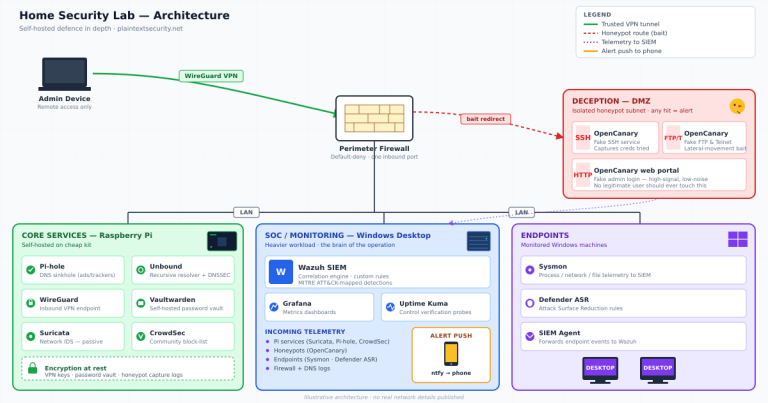
I run a full self-hosted security stack — DNS filtering, a VPN, a password vault, intrusion detection, honeypots, SIEM correlation and alerting — for a household. The core of it runs on a Raspberry Pi 4 that cost less than a decent dinner out. Nothing in it is exotic. Nothing in it was bought because a forum said I needed it.
This is the buying guide for that approach: what to buy, in what order, and — more usefully — what to skip.
This article contains affiliate links. Plain Text Security may earn a commission on purchases made through them, at no extra cost to you, and it never changes what gets recommended. See our affiliate disclosure for details.
The thesis: this is not a spending problem
The single most common mistake in home labs is buying hardware to solve a problem that is actually a configuration problem.
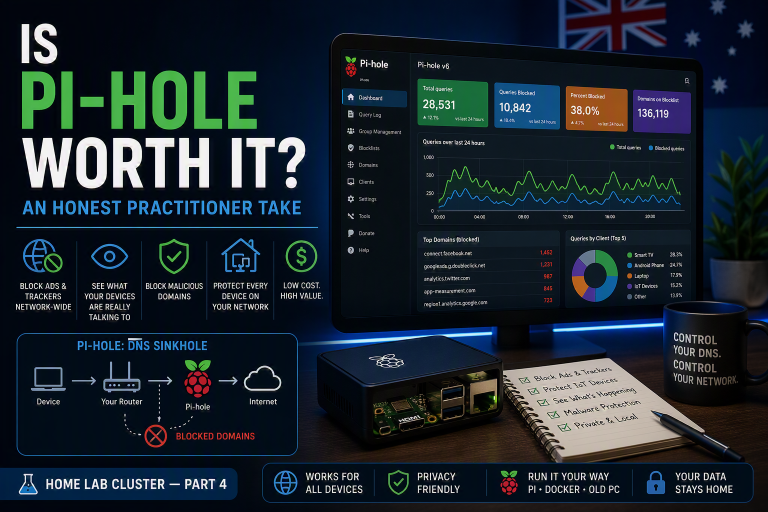
Closing your inbound ports costs nothing. Putting a DNS filter in front of every device costs nothing beyond a $100 single-board computer. Writing firewall rules that stop your IoT devices reaching your NAS costs nothing. Those three changes account for the overwhelming majority of the security benefit available to a home network, and none of them are on a shopping list.
Hardware matters at the margins — when you need more memory than a Pi can offer, when you need somewhere to keep six months of logs, or when you need the network gear to support a capability your current gear physically cannot. Those are real constraints and I will cover each of them. But they are the exception, and treating hardware as the starting point is how people end up with an expensive, under-configured lab that is no safer than the flat network it replaced.
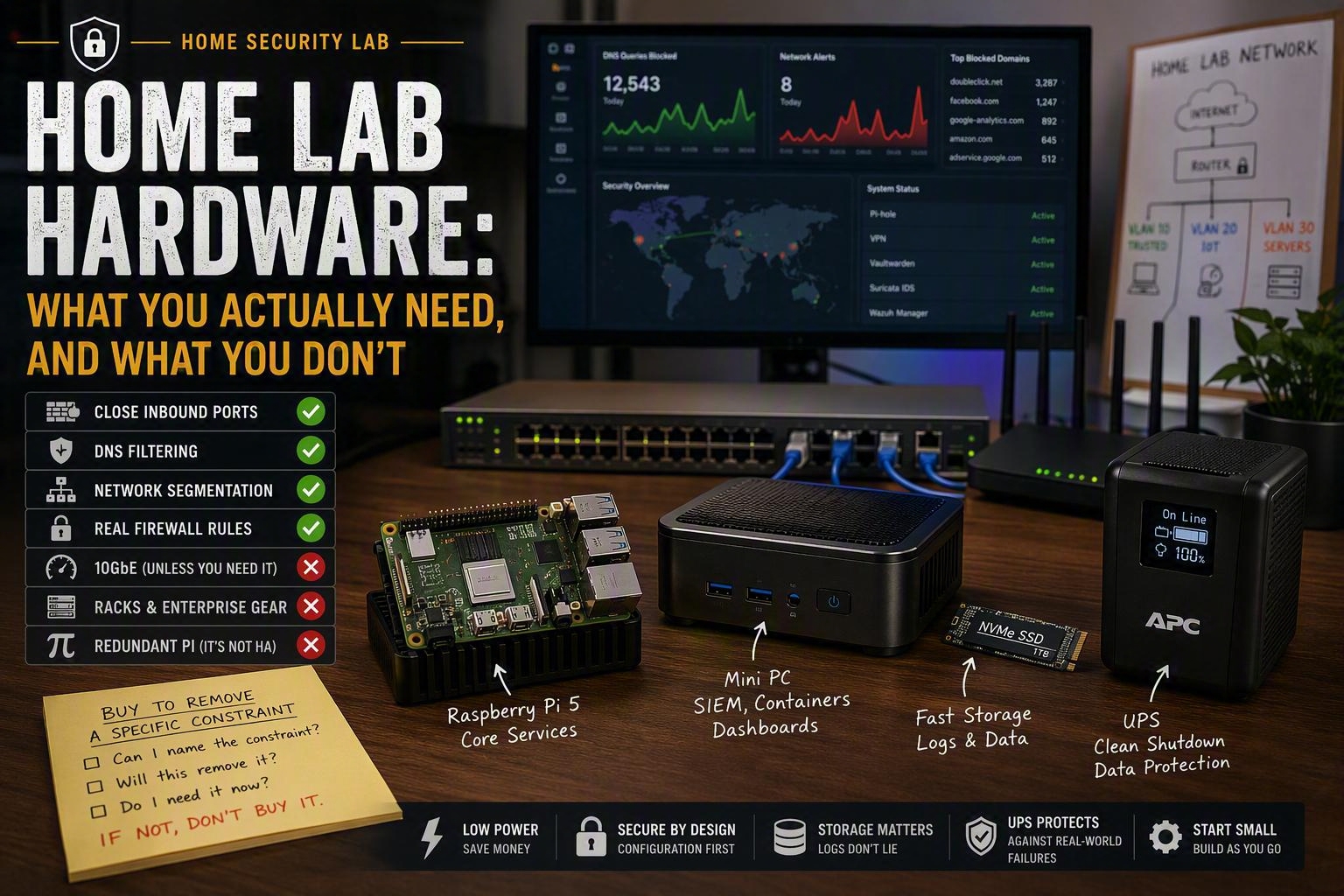
Buy to remove a specific constraint. If you cannot name the constraint, you are shopping, not building.
Start with what you already own
Before anything else, take an inventory. Most households are sitting on more usable compute than they realise.
The old laptop or desktop in the cupboard. Anything from roughly 2016 onward with 8GB of RAM is a perfectly serviceable lab host. A machine that is too slow for modern Windows is entirely adequate for a Linux host running containers. This is free, and it is the single best way to find out whether you enjoy this before spending anything.
The existing router. You may not need to replace it. Check whether it supports VLANs and custom firewall rules before assuming it doesn’t — some consumer models do, and if yours does, that is several hundred dollars you don’t need to spend.
A spare SSD. Old drives pulled from upgraded machines are fine for a lab host’s boot volume. They are not fine for the data you care about, which I will come back to.
The corollary: if you can build the first version out of what’s in the cupboard, do that, run it for a month, and let the actual bottleneck tell you what to buy. That is a far better purchasing signal than any buying guide, including this one.
The compute layer
There are really only two decisions here, and they are decided by memory, not by processing power.
A single-board computer for the always-on core
A Raspberry Pi handles DNS filtering, a VPN endpoint, a password vault and lightweight monitoring without breaking a sweat. It draws a handful of watts, it has no fans to fail, and if you destroy the operating system you reflash the card and start again. For the always-on, must-not-go-down services, it is close to ideal.
If you are buying today, get a Raspberry Pi 5 kit — the 8GB model, with a proper power supply and a case with some thermal mass. Buy the kit rather than assembling parts; the official power supply in particular is worth having, because a large share of “my Pi keeps crashing” threads resolve to an underpowered USB adapter.
Honest disclosure: mine is a Pi 4, and I have had no reason to replace it. It runs the entire core of my lab and has never been the bottleneck. I recommend the 5 to new buyers because it is what’s current and the price gap is small, not because the 4 has stopped being adequate. If you already own a Pi 4, keep it and spend the money on storage instead.
What to look for: 8GB of RAM if the budget allows, an official or genuinely reputable power supply, a case that does something about heat, and boot-from-SSD rather than microSD. That last one matters more than people expect — microSD cards fail under the sustained small writes that logging produces, and they usually fail without warning.
A second machine for anything memory-hungry
The moment you add a SIEM, log correlation, metrics and dashboards, you are past what a Pi should be asked to do. Not because the processor is too slow, but because those workloads want memory and sustained disk throughput.
This is where the old desktop earns its place. If you don’t have one, a modern mini PC with 16GB of RAM is the sensible buy — Intel N100-class machines are cheap, quiet, draw very little power, and will run a hypervisor and half a dozen containers without complaint.
What to look for: 16GB of RAM minimum, and 32GB if you intend to run a SIEM properly. An NVMe slot rather than SATA only. At least one, ideally two, gigabit network interfaces. Low idle power draw, because this machine runs continuously and the running cost compounds.
What not to buy: a decommissioned enterprise server. They are cheap to acquire and expensive to own. A rack server draws several times the power of a mini PC for capability you will not use, sounds like a hair dryer, and needs somewhere to live that isn’t a bedroom. Enterprise hardware is a rational choice when you need enterprise capability. At home, you don’t.
Storage is where the money should go
If there is one place to spend, it’s here — and it’s the part most build guides skim past on the way to talking about processors.
Two separate problems get conflated. The first is capacity for the data you care about: documents, photos, backups. The second is throughput for logs, which is a completely different workload — constant small writes, growing indefinitely, and the first thing to fall over when a SIEM starts ingesting properly.
For a lab host, a 1TB NVMe SSD covers both comfortably for most households. Log retention is the variable that will surprise you: a household SIEM pulling endpoint telemetry from two or three machines can generate several gigabytes a week, and the useful thing about logs is being able to look back six months when something odd surfaces. Retention you can’t afford is retention you don’t have.
What to look for: NVMe over SATA where the machine supports it. A drive rated for a reasonable amount of sustained writes, since logging is write-heavy by nature. Enough capacity that you are not deleting logs to make room, which defeats the purpose of collecting them.
And the part that isn’t optional: a lab host is not a backup. Self-hosting your password vault means you now own the availability and durability problem that a commercial provider used to own for you. If the answer to “what happens if this SSD dies tonight” is anything other than a specific, tested restore procedure, you have built a single point of failure and called it security. That is the honest trade in self-hosting, and it is the reason I still recommend a managed password manager to most households rather than self-hosting Vaultwarden.
Power: what it actually costs to run in Queensland
Every always-on machine is a small standing charge on your electricity bill, and the numbers are worth knowing before you commit to a build rather than after.
The useful rule, sized for Queensland:
One watt running continuously for a year costs roughly $2.50 to $3.00.
That comes from the arithmetic: one watt for 8,760 hours is 8.76 kWh, and South East Queensland usage rates currently sit somewhere between about 27c/kWh on a competitive market offer and the mid-30s on a standing offer. The Australian Energy Regulator’s Default Market Offer for 2026–27 sets the Energex residential benchmark at $1,988 a year against 4,600 kWh of assumed usage — and notably, that reference price fell 7.2% on 1 July 2026, the largest residential cut of any regulated region in the country.
Apply the rule and the picture is clear:
| Setup | Typical continuous draw | Rough annual running cost |
|---|---|---|
| Raspberry Pi (core services) | 5–7W | $15–$20 |
| Mini PC (SIEM, dashboards) | 12–25W | $35–$70 |
| Old desktop repurposed as a host | 60–90W | $165–$260 |
| Full tower or enterprise server | 150W+ | $355–$460+ |
That last row is the argument against the rack server, stated in dollars. A decommissioned server that cost you nothing to acquire can quietly cost more per year in electricity than a new mini PC costs to buy outright — and the mini PC does the job.
Two caveats worth stating plainly. These figures are for South East Queensland on the Energex network; regional Queensland is served by Ergon under separate regulated tariffs, and the rest of the country differs again. And your actual rate is on your own bill, which is the only number that really matters — the point of the rule is that you can apply it to your own tariff in about five seconds.
Networking: check the router before you buy anything
Networking hardware is where home lab budgets go to die, usually in the wrong order.
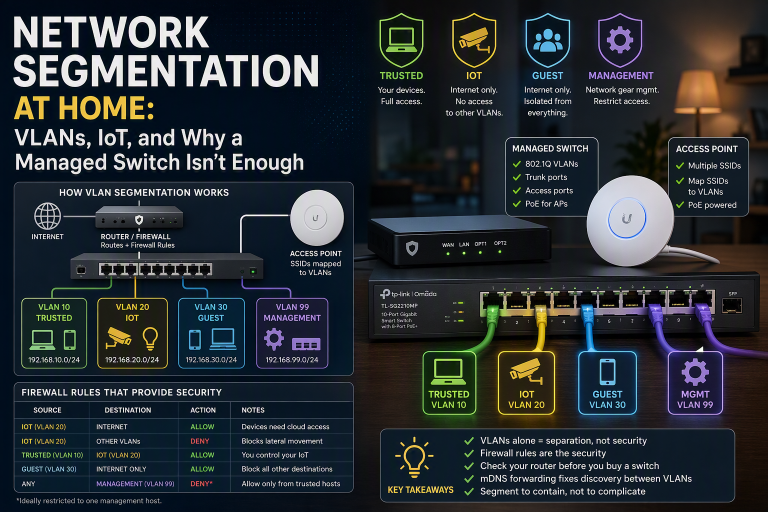
The short version: your router is the constraint, not your switch. A managed switch tags traffic between segments; it does not police it. If your router cannot create VLAN interfaces and write rules between them, a managed switch buys you tidy labels and no security at all. Buying the switch first is the single most common and most frustrating sequencing error in home networking.
There is one naming trap worth knowing before you spend: on TP-Link’s range, the TL-SG108 is unmanaged with no VLAN capability whatsoever, while the TL-SG108E is the “Easy Smart” model that does support tagged VLANs. One letter, entirely different device.
I have written the full treatment separately, because it deserves it — network segmentation at home covers router capability, switch selection, mapping SSIDs to VLANs, the firewall rules that do the actual security work, and the specific misconfiguration that makes clients associate to a wireless network and then never receive an IP address. If segmentation is your reason for buying network hardware, read that first and buy afterwards.
The one thing almost everyone skips
Buy an uninterruptible power supply.
This is the recommendation I feel most strongly about and see least often, and I suspect that’s because it isn’t exciting. A line-interactive UPS in the 650–850VA range costs less than a mid-range switch and does something none of your other hardware does: it prevents the specific failure that actually destroys home lab data.
That failure is not a hacker. It is a summer storm dropping the power mid-write, corrupting a filesystem or a database, and taking your password vault or your log store with it. South East Queensland gets a lot of summer storms.
What to look for: line-interactive rather than standby, which handles the voltage sags that are more common than outright outages. Enough runtime for a clean shutdown, not for continued operation — five to ten minutes is plenty. USB connectivity so the host can see the UPS and shut itself down gracefully, which is the entire point. Replaceable batteries, because they are consumable and typically last three to five years.
A UPS is the highest-integrity purchase on this list. It doesn’t add a capability. It stops you losing what you’ve built.
What you don’t need
A rack. Unless you have a garage and a genuine reason, a shelf is fine. Rack-mounting is an aesthetic decision with a power and noise bill attached.
10-gigabit networking. Your internet connection is the bottleneck, not your LAN. Unless you are routinely moving very large files between machines on your own network, gigabit is not constraining you.
A dedicated NAS appliance, at first. A NAS is a reasonable purchase once you know your capacity needs and have a backup strategy. Bought early, it is usually an expensive external drive with a worse interface. Let the requirement emerge.
Enterprise anything. Retired firewalls, servers and switches are cheap because organisations pay to dispose of them. Their power draw, noise and licensing complexity are the reason. Home labs are not scale models of data centres; the constraints are different and so should the hardware be.
A second Pi “for redundancy”. Two single points of failure is not high availability. If uptime matters that much, the answer is a tested restore procedure and a UPS, not a spare box.
Where to actually buy it
Amazon Australia is convenient and often competitive, and the links above go there. But it is frequently not the cheapest option, and pretending otherwise would be doing you a disservice.
For computing hardware specifically, PCCaseGear and Scorptec are Australian retailers that regularly beat Amazon on mini PCs, storage and networking gear, with local warranty handling that is materially better when something goes wrong. Core Electronics is the sensible Australian option for Raspberry Pi boards and accessories, and they stock the ecosystem properly rather than as an afterthought.
For the second machine in particular, also look at the used enterprise mini PC market — ex-lease Dell Optiplex Micro, HP EliteDesk Mini and Lenovo ThinkCentre Tiny units turn up on eBay and Gumtree for a fraction of new pricing, with 16GB of RAM and low power draw. This is the one place where second-hand enterprise gear genuinely makes sense, because these are small, quiet office machines rather than rack servers.
None of those retailers pay me anything. I am naming them because if the goal is a good home lab rather than a good affiliate commission, you should compare before you buy.
Three builds
| Minimal | Recommended | Full stack | |
|---|---|---|---|
| What it runs | DNS filtering, VPN | Above, plus password vault, monitoring, containers | Above, plus SIEM, IDS, honeypots, log retention |
| Core | Raspberry Pi 5, 8GB | Raspberry Pi 5, 8GB | Raspberry Pi 5, 8GB |
| Second machine | — | Old desktop or mini PC, 16GB | Mini PC, 32GB |
| Storage | 128GB SSD | 1TB NVMe | 1TB NVMe + separate backup target |
| Network | Existing router | Existing router if VLAN-capable | VLAN-capable router, managed switch, VLAN-aware AP |
| UPS | Recommended | Yes | Yes |
| Rough spend | $150–250 | $400–700 | $900–1,500 |
| Running cost | ~$20/yr | ~$50–90/yr | ~$70–110/yr |
Spend figures assume buying new and will drop considerably if you already own a machine or buy used. Running costs use the Queensland rule above.
The honest recommendation for most households is the middle column, and the honest recommendation for most people reading this is to start at the left and see whether they enjoy it.
The verdict
Home lab hardware is the least important part of a home lab. The security comes from configuration — closed ports, filtered DNS, segmented networks, real firewall rules — and configuration is free.
Buy a Pi for the always-on core. Use what you already own for anything memory-hungry, and buy a mini PC only when you hit an actual wall. Put your money into storage, because that is the constraint that will genuinely bite. Buy a UPS, because it prevents the failure most likely to destroy what you’ve built. Check what your router can do before you buy a single piece of network gear.
Then spend your time on the configuration, which is where the security actually lives.
If you want the reasoning behind the whole stack rather than the shopping list, why I built a home security lab covers the architecture and the thinking. If you are here for the network side, network segmentation at home is the piece to read next. And if you just want the highest-value weekend project on the list, start with Pi-hole.
This article contains affiliate links. Plain Text Security may earn a commission on purchases made through them, at no extra cost to you, and it never changes what gets recommended. As an Amazon Associate we earn from qualifying purchases. See our affiliate disclosure for full details.