Home Network Security: A Practical Guide for Australians
Most home networks are far less secure than the people who own them realise. The router sitting in the corner was set up once, probably by an ISP technician or a family member who “knows about computers”, and hasn’t been touched since.
This guide covers what actually matters for home network security — not an exhaustive list of every possible configuration, but the things that make a meaningful difference to your risk profile.
Why home network security matters more than it used to
Ten years ago, your home network had a laptop, maybe a desktop, and a phone or two. Today it probably has smart TVs, streaming devices, security cameras, smart speakers, thermostats, doorbells, and appliances — each of them a potential entry point.
Every device on your network is a potential target. A compromised smart TV can be used to attack other devices on the same network. A poorly secured security camera can be accessed remotely. A vulnerable router can redirect your traffic without your knowledge.
This isn’t fearmongering — it’s the reality of what the threat landscape looks like for Australian households in 2026.
Start with your router
Your router is the gateway to everything on your network. It’s also the device people pay the least attention to after setup.
Change the default admin credentials. Every router comes with a default admin username and password — usually something like admin/admin or admin/password. These are published online and are the first thing attackers try.
Log into your router’s admin panel (usually at 192.168.1.1 or 192.168.0.1 in your browser) and change both the username and password to something strong and unique. Use your password manager to generate and store it.
Keep the firmware updated. Router firmware updates fix security vulnerabilities. Most routers don’t update automatically — you need to check manually, or configure automatic updates if your router supports it.
Check your router manufacturer’s website or the admin panel for firmware updates. If your router is more than four or five years old and no longer receiving firmware updates, consider replacing it — it’s likely running with known, unpatched vulnerabilities.
Use WPA3 encryption if available. WPA3 is the current standard for Wi-Fi encryption. If your router and devices support it, enable it. If you’re stuck on WPA2, make sure you’re using WPA2-AES (not TKIP, which is outdated and weaker).
Avoid WEP entirely — it’s been broken for over a decade and provides effectively no protection.
Disable WPS. Wi-Fi Protected Setup (WPS) is a feature designed to make it easier to connect devices to your network. It has known vulnerabilities and should be disabled. Look for it in your router’s wireless settings.
Change your network name (SSID). Don’t broadcast your router model in your network name — “Netgear_2GEXT” tells attackers exactly what hardware you’re running and what vulnerabilities to look for. Use a name that doesn’t identify you or your hardware.
Segment your network
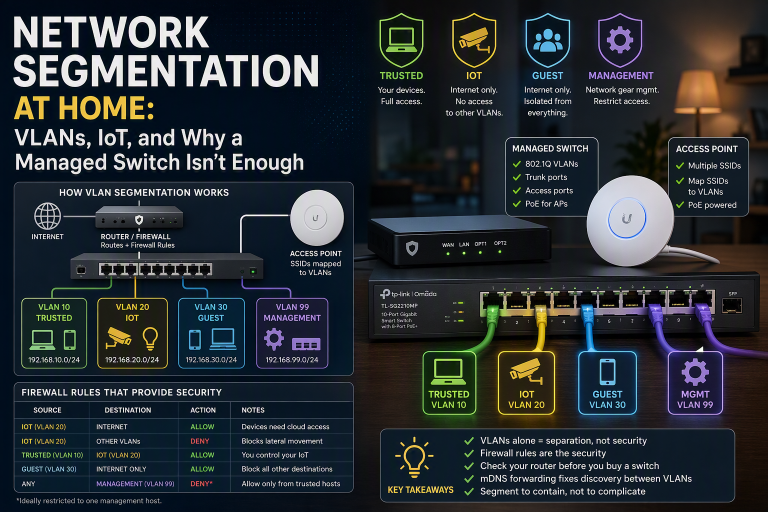
Network segmentation means putting different types of devices on separate networks so that if one is compromised, it can’t easily reach the others.
Most modern routers support this through a guest network feature. Here’s how to use it:
Main network: Your computers, phones, and tablets — devices you trust and that handle sensitive data.
IoT/guest network: Smart TVs, cameras, smart speakers, thermostats, and any other internet-connected devices. Also use this for guests.
The key benefit: if your smart TV is compromised, the attacker is on a separate network and can’t directly access the laptop where you do your banking.
Setting this up takes about ten minutes and is one of the highest-impact changes you can make to your home network security.
Secure your DNS
DNS is the system that translates domain names (like google.com) into IP addresses. By default, your DNS queries go to your ISP — which means your ISP can see every domain you visit, and can potentially redirect you to malicious sites.
Switching to an encrypted DNS resolver addresses both problems. Two good options:
Cloudflare (1.1.1.1): Fast, privacy-focused, and offers a family-safe filtering option (1.1.1.3) that blocks known malware and adult content domains.
NextDNS: More configurable, with logging and filtering options. Has an Australian privacy policy.
You can configure DNS at the router level (applies to all devices) or on individual devices. Router-level is better.
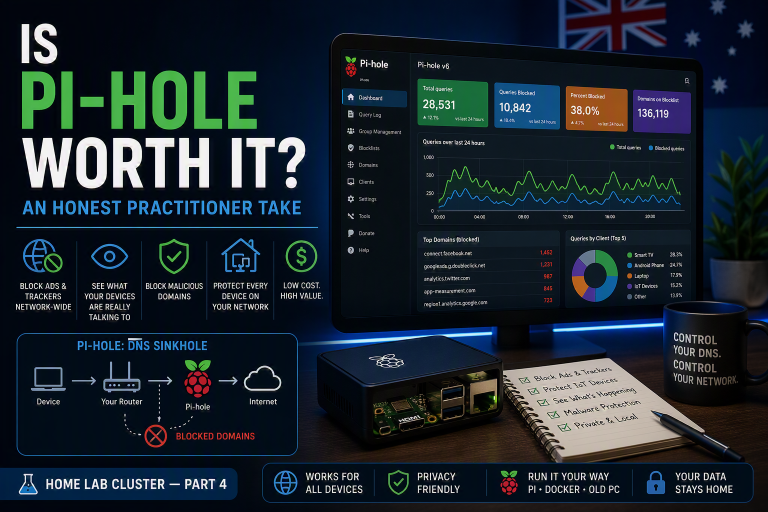
Use a DNS-based ad and malware blocker. DNS-based blockers like Pi-hole (free, self-hosted) or NextDNS (free tier available) block ads and known malicious domains at the network level — before they ever reach your devices.
This means protection applies to every device on your network, including smart TVs and other devices where you can’t install software. It’s a meaningful layer of protection against malvertising (ads that deliver malware) and known phishing domains.
Pi-hole requires a Raspberry Pi or spare computer and some technical setup. NextDNS is much easier to configure and has a generous free tier.
Audit what’s on your network
Do you know every device connected to your home network? Most people don’t.
Your router’s admin panel usually has a connected devices list — check it. Look for anything you don’t recognise. An unfamiliar device could be a neighbour using your Wi-Fi, an old device you forgot about, or something more concerning.
For a more detailed view, a free tool like Angry IP Scanner (Windows/Mac/Linux) or the Fing app (iOS/Android) will show you every device on your network, its IP address, and its manufacturer.
Check for exposed services
Many routers have features that expose services to the internet — remote management, UPnP (Universal Plug and Play), and port forwarding rules set up for games or applications.
Disable remote management unless you specifically need it and know what you’re doing.
Disable UPnP if you can tolerate the minor inconvenience of manually configuring port forwarding when needed. UPnP allows applications to automatically open ports in your firewall — a useful feature that has been abused by malware.
You can check whether any of your home network’s services are exposed using Shodan (shodan.io) — search for your public IP address to see what the internet can see of your network.
Physical security matters too
Don’t overlook the physical layer:
Position your router so the Wi-Fi signal doesn’t extend unnecessarily far outside your home
If you have a smart home hub or NAS (network-attached storage), put it somewhere physically secure — not in a publicly accessible area
Consider what happens if someone physically accesses one of your devices
The checklist
Here’s a summary of what to action, roughly in priority order:
Change router admin credentials — default credentials are a wide-open door
Update router firmware — check now, then set a calendar reminder to check quarterly
Enable WPA3 or WPA2-AES — disable WEP and WPS
Create a separate IoT/guest network — segment your smart devices
Switch to encrypted DNS — Cloudflare 1.1.1.1 or NextDNS
Audit connected devices — know what’s on your network
Disable UPnP and remote management — reduce your attack surface
Consider a DNS-level blocker — NextDNS for easy setup, Pi-hole for control
None of these require expensive hardware or deep technical knowledge. Most can be done in an afternoon.
When to consider a more capable router
If your current router is more than four or five years old, doesn’t support WPA3, or is an ISP-provided device with limited configuration options, it may be worth upgrading.
Routers worth considering for home users who want better security controls:
Asus routers with AiProtection — built-in network security features powered by Trend Micro
Ubiquiti UniFi — prosumer/SMB grade, significant configuration capability, higher setup complexity
Firewalla — a network security device that sits alongside your existing router and adds monitoring, blocking, and visibility
For most households, a mid-range Asus or TP-Link router with current firmware and the configuration changes above will be significantly more secure than what you’re probably running today.
This article was written by a CISO-level practitioner. For questions or topics you’d like covered, get in touch at [email protected].
Plain Text Security may earn a commission from some links on this page at no cost to you. Affiliate relationships never influence recommendations — see the full affiliate disclosure.